Online Spanish Class Safety: A Parent's Privacy Checklist
Before deciding “are online Spanish classes safe for kids,” ask the school for written answers about recordings, supervision, and contact outside class. Use this privacy checklist before your child joins a video call, including a free introductory class. Treat unanswered questions as a reason to pause enrollment.
Key takeaways
- Confirm whether classes are recorded and how you give or decline permission before your child joins.
- Ask exactly who can watch, download, or share recordings, and when copies are deleted.
- Agree on parent observation and require contact outside class to include you through school-approved channels.
- Keep account recovery and consent decisions under adult control, with limited permissions for your child.
- Save an administrator’s contact details and ask how to report concerns or request data deletion.
1. Clarify recording consent before the first call
Start with a direct question: “Will you record my child’s class, including audio, video, chat, or an automated transcript?” Ask about screenshots and AI-generated summaries too, even if the school says it does not save video.
The FTC’s COPPA frequently asked questions identify recordings containing a child’s image or voice as personal information. Covered services generally need verifiable parental consent before collecting personal information from children under 13, subject to limited exceptions. (ftc.gov)
Ask what each permission covers
Request separate explanations for teaching-related recording, staff training, and promotional use. Ask whether your child can attend without being recorded and what happens if you withdraw permission later.
Use this wording: “Please explain what you save, why you save it, and which uses I can decline.” Read the answer before accepting a recording prompt, and ask for clarification if it differs from the enrollment form.
2. Find out who can access recordings
Ask the school to name the roles with access: your child’s teacher, supervisors, administrators, and outside service providers. Request an explanation of where files are stored, including whether teachers may keep copies on personal devices.
Zoom’s cloud recording sharing documentation describes different access settings, including sharing with specific people or anyone with a recording link. It also describes download controls and link expiration, so ask which settings the school actually uses. (support.zoom.com)
Get a concrete retention answer
Ask for the deletion schedule for recordings and associated transcripts. Follow up about downloaded copies, backups, and whether an expiring link also means the underlying file is deleted.
Prefer an answer that specifies who is responsible and gives a defined retention period. If the response is simply “everything is private,” send the questions back and request the details in writing.
3. Agree on parent observation and supervision
Before enrolling, ask whether you can remain beside your child or within earshot throughout class. Also ask whether joining from a second device requires advance approval and how the teacher confirms that an observer is an authorized caregiver.
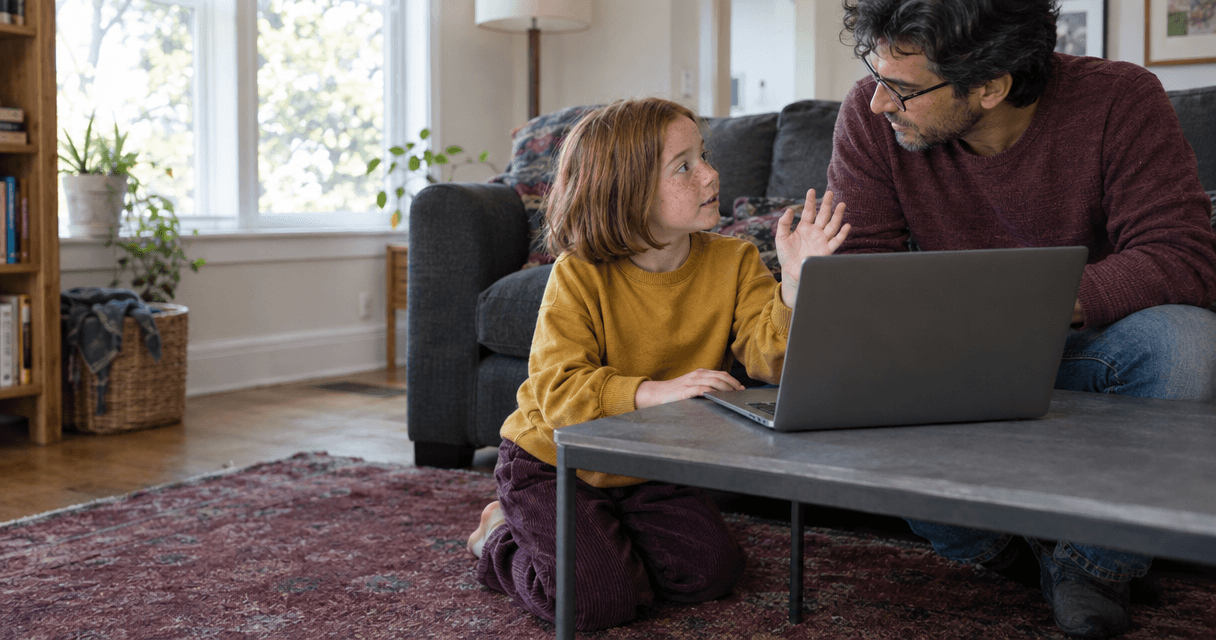
For a first class, consider a shared living room: your child at a low table beside the couch, with you nearby. Tell the teacher where you will be, and practice with your child how to leave the call and get your attention.
Ask who admits participants, how unexpected visitors are handled, and whether anyone besides the assigned teacher may observe. Request an explanation of teacher screening and how concerns about conduct are reviewed; avoid treating parent observation as the only safeguard.
4. Set boundaries for private teacher-child messaging
Ask for the school’s written rules on contact outside class. Make your preference explicit: scheduling, practice reminders, and feedback should reach you through an approved school channel.
Australia’s eSafety Commissioner’s guidance on communicating with children online recommends including another adult in conversations and avoiding personal email or social accounts. Use that guidance to ask how the school keeps communications visible and accountable. (esafety.gov.au)
Check these points before giving your child access:
- Are you included in every conversation outside class?
- Can your child receive private messages during or after a call?
- Who reviews message history when a concern arises?
- Are personal phone numbers, social accounts, and disappearing messages prohibited?
Tell your child: “Show me any message asking you to move to another app or keep a conversation secret.” Add that they will not be in trouble for asking for help, even if they already replied.
5. Review account permissions with an adult in control
Ask the school to show you what a parent account can do and what your child can access. Keep consent choices, payments, and account recovery under your control; ask whether your child needs a separate login at all.
The eSafety Commissioner’s school online-collaboration guidelines recommend secure logins and multifactor authentication for school accounts. Ask whether these protections are available for your account and required for staff. (esafety.gov.au)
Review requests for camera, microphone, file, and contact access before approving them. Ask why each permission is needed, and request instructions for turning off unnecessary access after class.
Also ask how staff permissions change when a teacher leaves or your child changes teachers. Request confirmation that former staff lose access to your child’s records and communication channels.
6. Know how to report concerns and request deletion
Save a school administrator’s contact details before class begins. Ask who handles privacy or conduct complaints, when you should expect acknowledgment, and how to escalate an unanswered report.
If something makes your child uncomfortable, end the call and listen without blame. Note the date, teacher’s name, and what happened; report the concern through the school’s official channel and request written next steps.
Ask about deletion before you need it
For services covered by COPPA, parents have rights to review their child’s collected information, withdraw consent, and request deletion. The FTC’s guide to protecting your child’s privacy online explains these rights and how to report suspected violations. (consumer.ftc.gov)
Ask for the school’s request process and expected completion time. Specify recordings, transcripts, chat history, and uploaded work, then request confirmation explaining what was deleted and any information retained with the reason.
Bring this checklist to Spanish For Us and ask for current policy details before your child joins. Once your questions are answered, book a free class to see how your child connects with the teacher.
Sources
- Complying with COPPA: Frequently Asked Questions — Federal Trade Commission.
- Managing and sharing cloud recordings — Zoom Support.
- Online chat and video chat — eSafety Commissioner, 2025.
- Guidelines for social media use, video sharing and online collaboration — eSafety Commissioner.
- Protecting Your Child’s Privacy Online — Federal Trade Commission, 2026.
Frequently Asked Questions
What should I do if a substitute teacher appears unexpectedly?
Pause the class and confirm the change through the school’s usual parent contact channel before continuing. Ask the school to introduce the substitute and explain whether the same observation and communication rules apply. Request advance notice of future changes.
Should I install an extra app if the teacher asks during class?
Wait until you have reviewed the request yourself. Ask the school to explain the app’s purpose, required permissions, and whether your child needs a separate account. Request an alternative activity while you decide.
How should I handle Spanish voice recordings assigned as homework?
Ask your child to submit recordings only through a school-approved channel that you can access. Before uploading, confirm who can listen, whether downloading is allowed, and when the file will be deleted. Ask for an in-class speaking alternative if you prefer not to upload audio.
Ready to get your child speaking Spanish?
Book a free 1-on-1 class with a native-speaking teacher. No commitment, no credit card.
Try a Free Class